How to Add Tasks to Todoist, TickTick & Google Calendar by Voice (Siri + Apple Watch)
Stan · · 5 min read
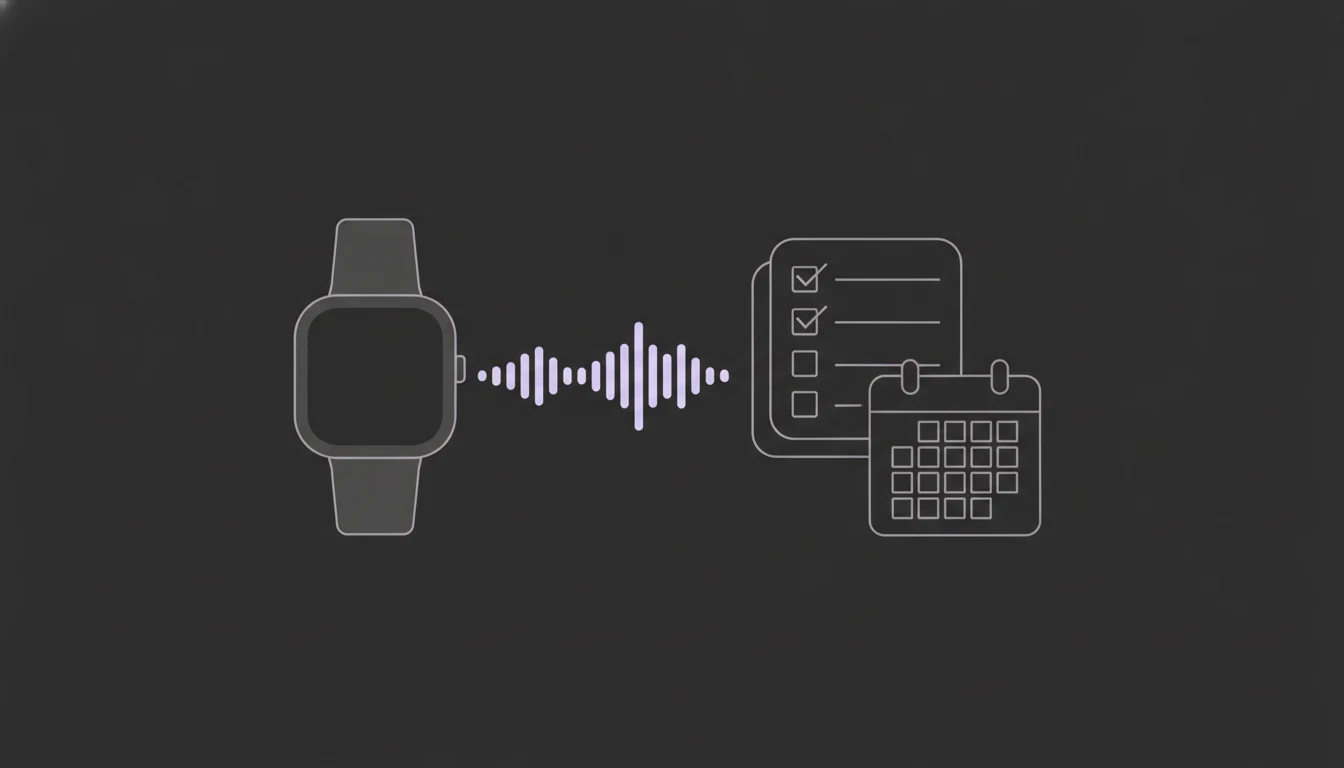
Add tasks to Todoist or TickTick by voice, and events to Google Calendar. Say 'Hey Siri, Brain Dump' on your iPhone or Apple Watch and BrightMind files it, hands-free.
The thought shows up at the worst possible moment. You're walking the dog, hands full, and you remember you're out of coffee and the dentist needs rescheduling. By the time you're back at your phone, both are gone.
Typing is the friction. Your brain moves faster than your thumbs, and unlocking the phone, finding the app, and tapping out a task is enough to lose the thought on the way. So this guide removes the typing: you say it out loud, and it lands in your task manager.
BrightMind files what you say into Todoist or TickTick, and puts timed appointments on Google Calendar. After a one-time setup, you do it straight from your Apple Watch: "Hey Siri, Brain Dump." Here's how to set it up, plus the part that makes it stick: it remembers what you already said.
What you can do
Once it's set up, you add a task to Todoist or TickTick without touching a screen. Raise your wrist, say "Hey Siri, Brain Dump," speak the task, and BrightMind files it. A timed appointment goes to Google Calendar instead.
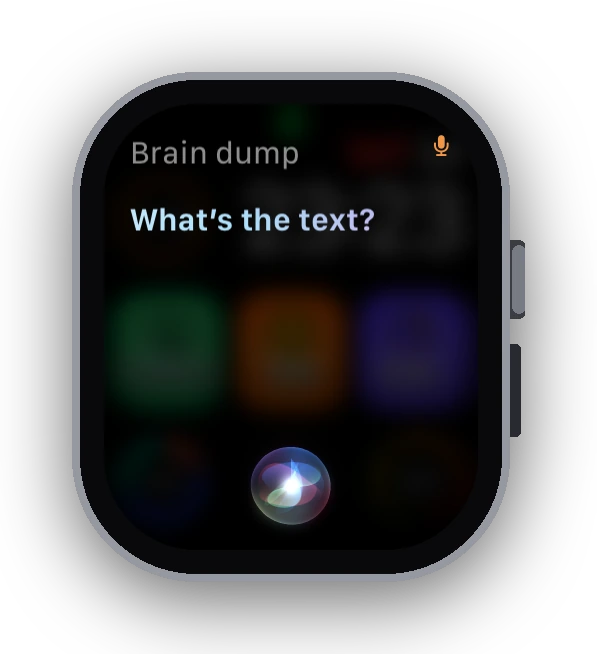
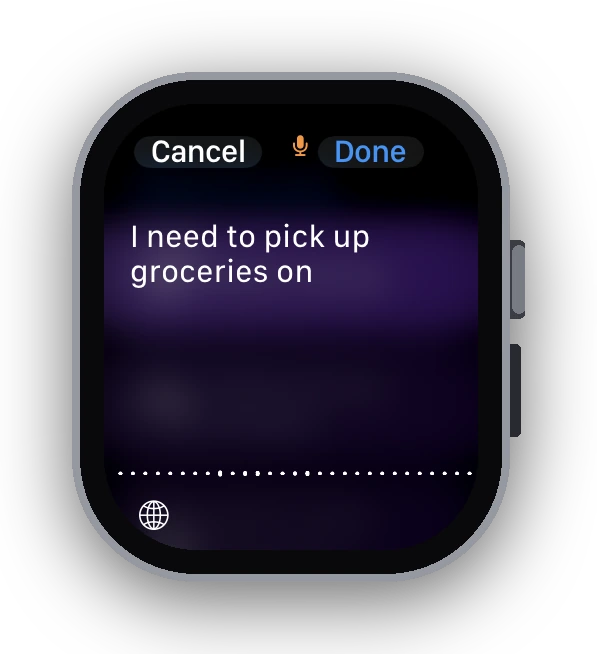
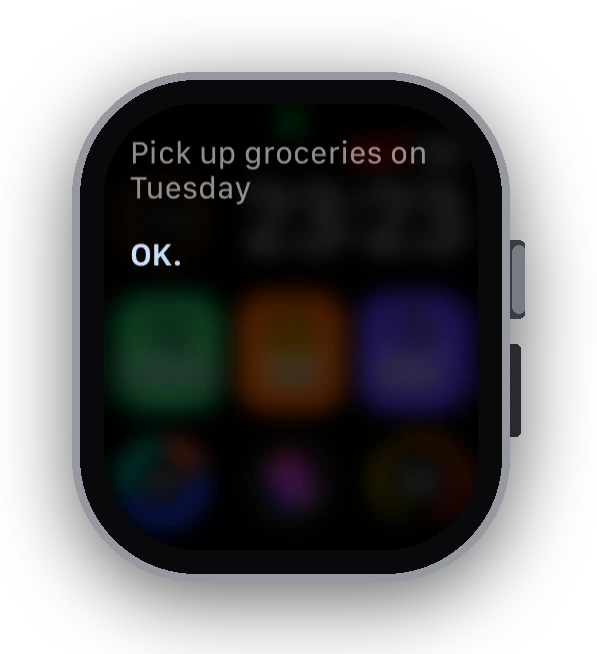
The whole loop, from raising your wrist to a saved task, takes a few seconds and zero menus. You stop telling yourself "I'll add it later."
Connect your task manager
BrightMind works with both Todoist and TickTick. Download it, run the short onboarding, then open Settings and connect the one you use. Whatever's connected is where your captures land, the same as if you'd typed the task into BrightMind yourself. If you've connected both, your active task manager is the one it files into.
For the full build on each, see Todoist for ADHD or TickTick for ADHD. Connect Google Calendar too and BrightMind sends timed appointments there instead of your task list; setup is in the Google Calendar docs.
Turn on "Add with Siri"
Open Settings, tap Siri & Shortcuts, and turn on Add with Siri. That switches on capture and creates the personal capture link the watch shortcut needs.
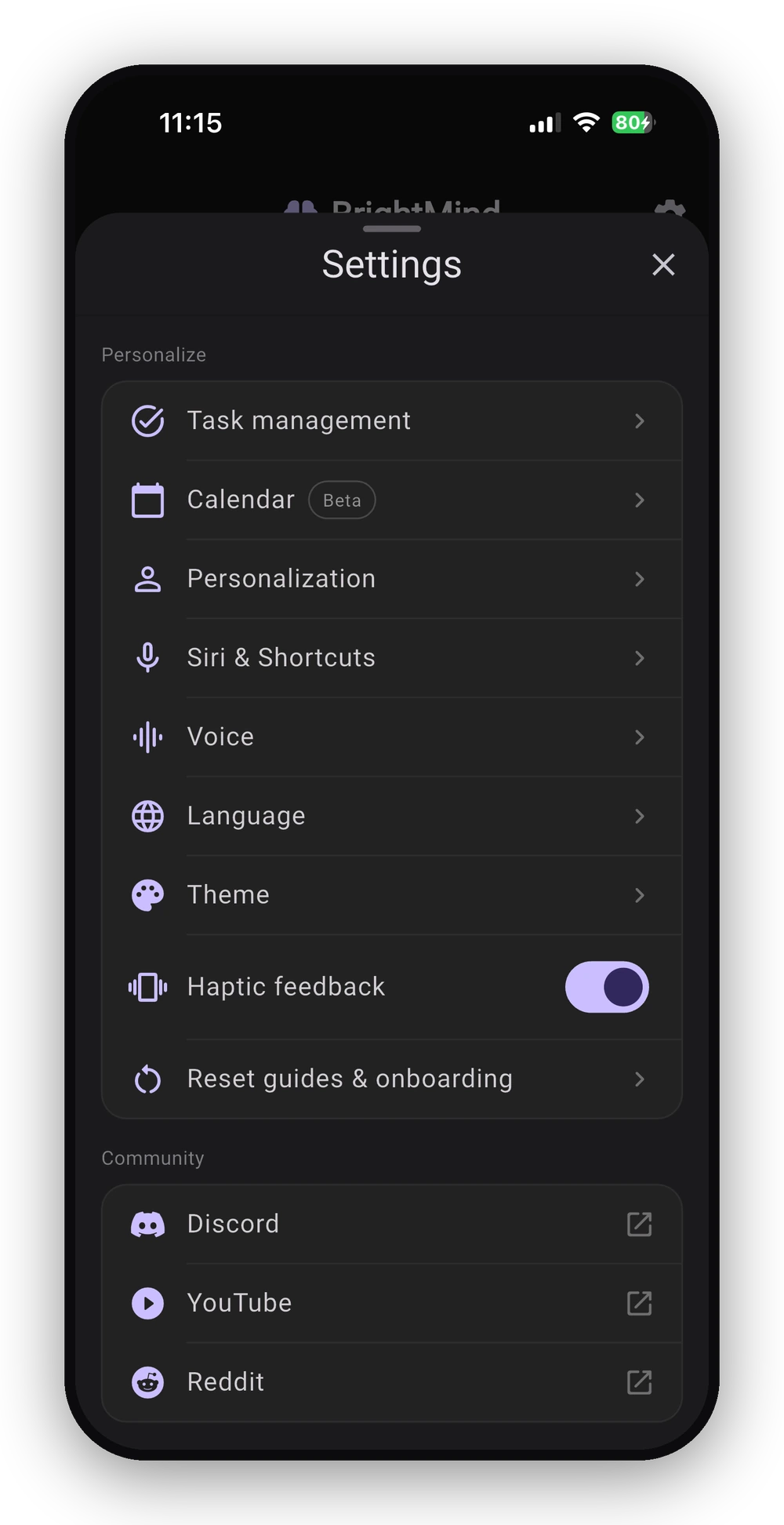
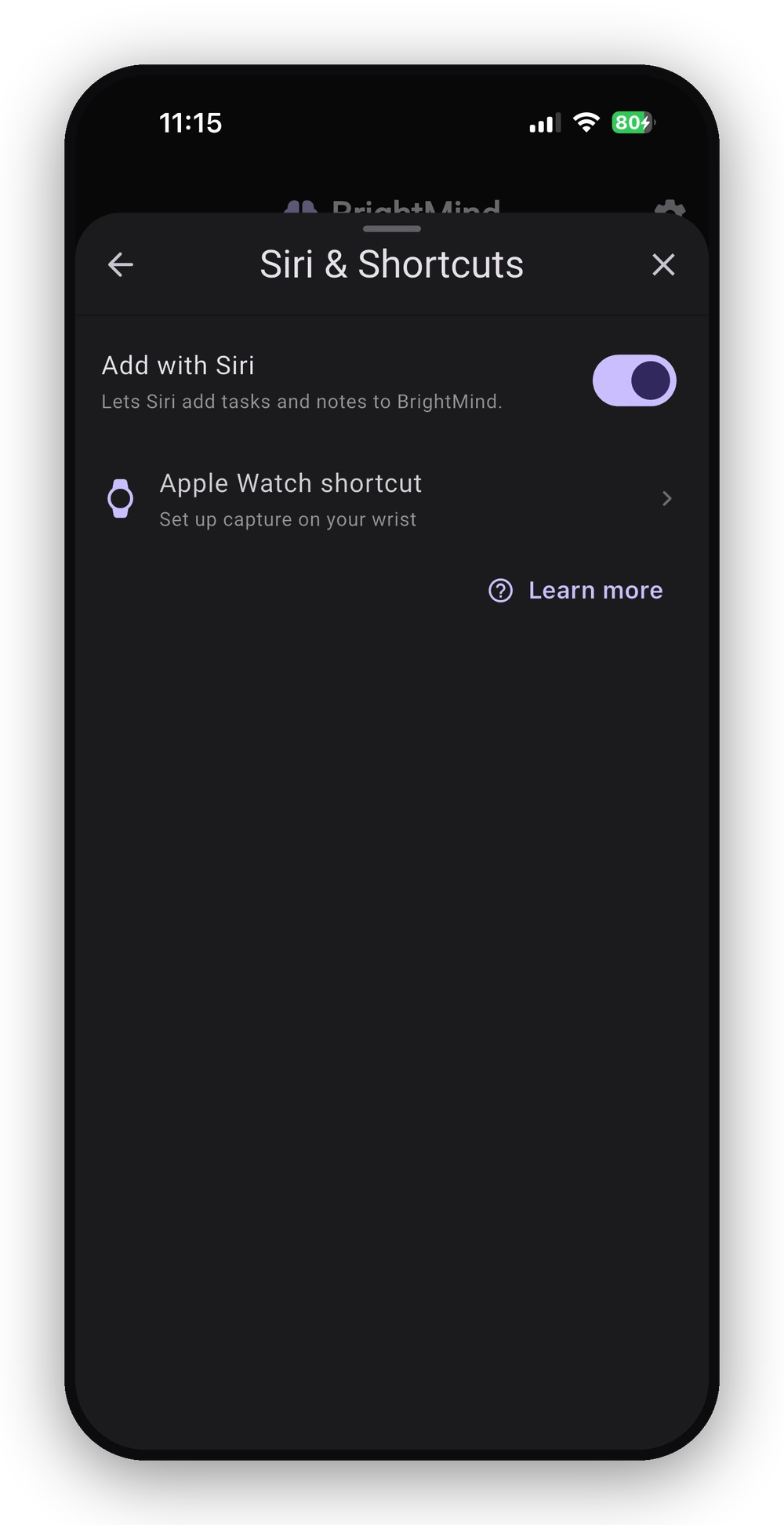
If iOS asks for permission, allow it. The Apple Watch needs one more step.
Set up the Apple Watch shortcut
In BrightMind, open Settings, then Siri & Shortcuts, then Apple Watch shortcut. Tap Copy next to your capture link, then tap Get the Shortcut. The Brain Dump shortcut opens in Apple's Shortcuts app: tap Set Up Shortcut, paste your link when it asks, and tap Add Shortcut. That's the whole setup. You never open the shortcut's editor, and it shows up on your Apple Watch automatically.
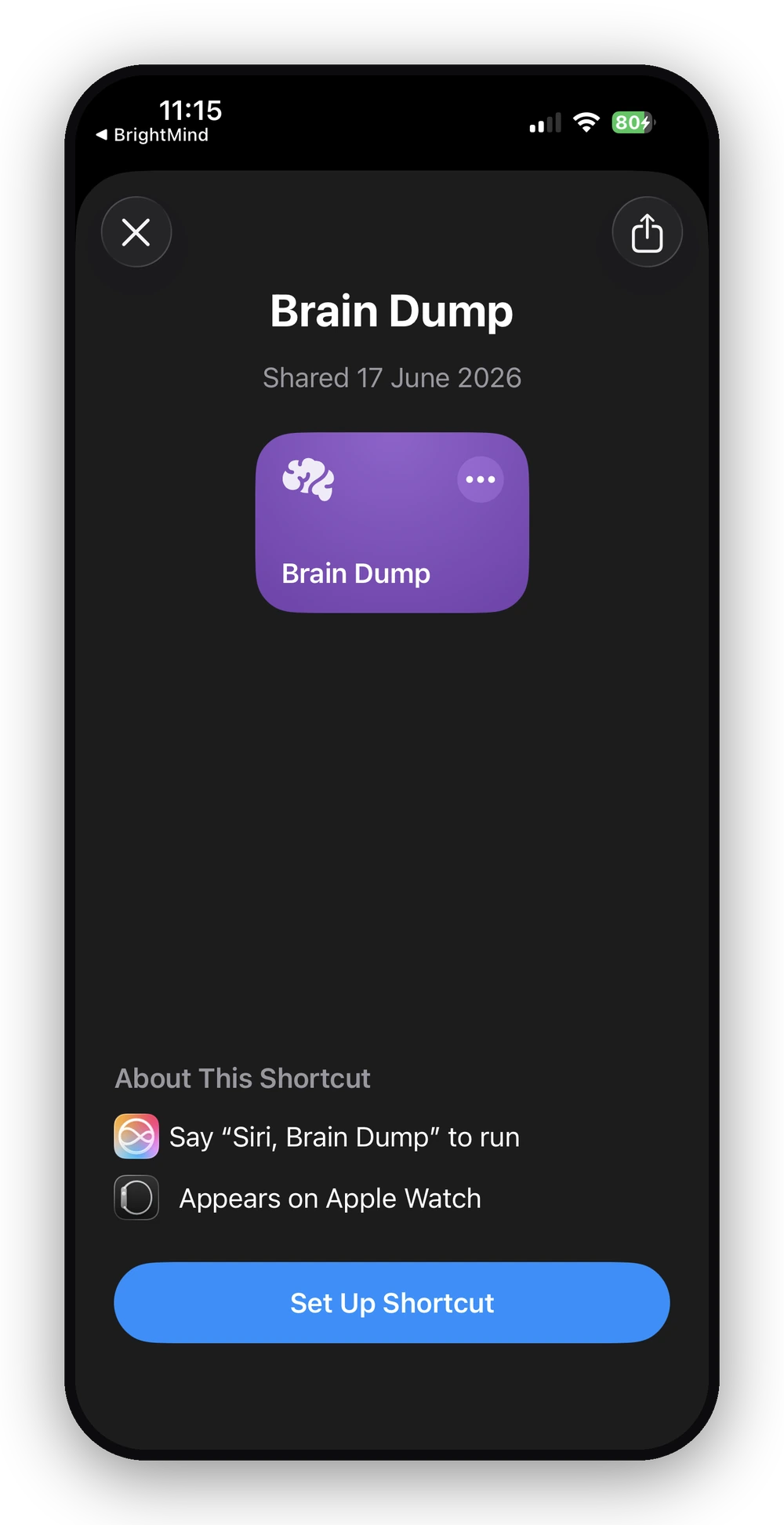
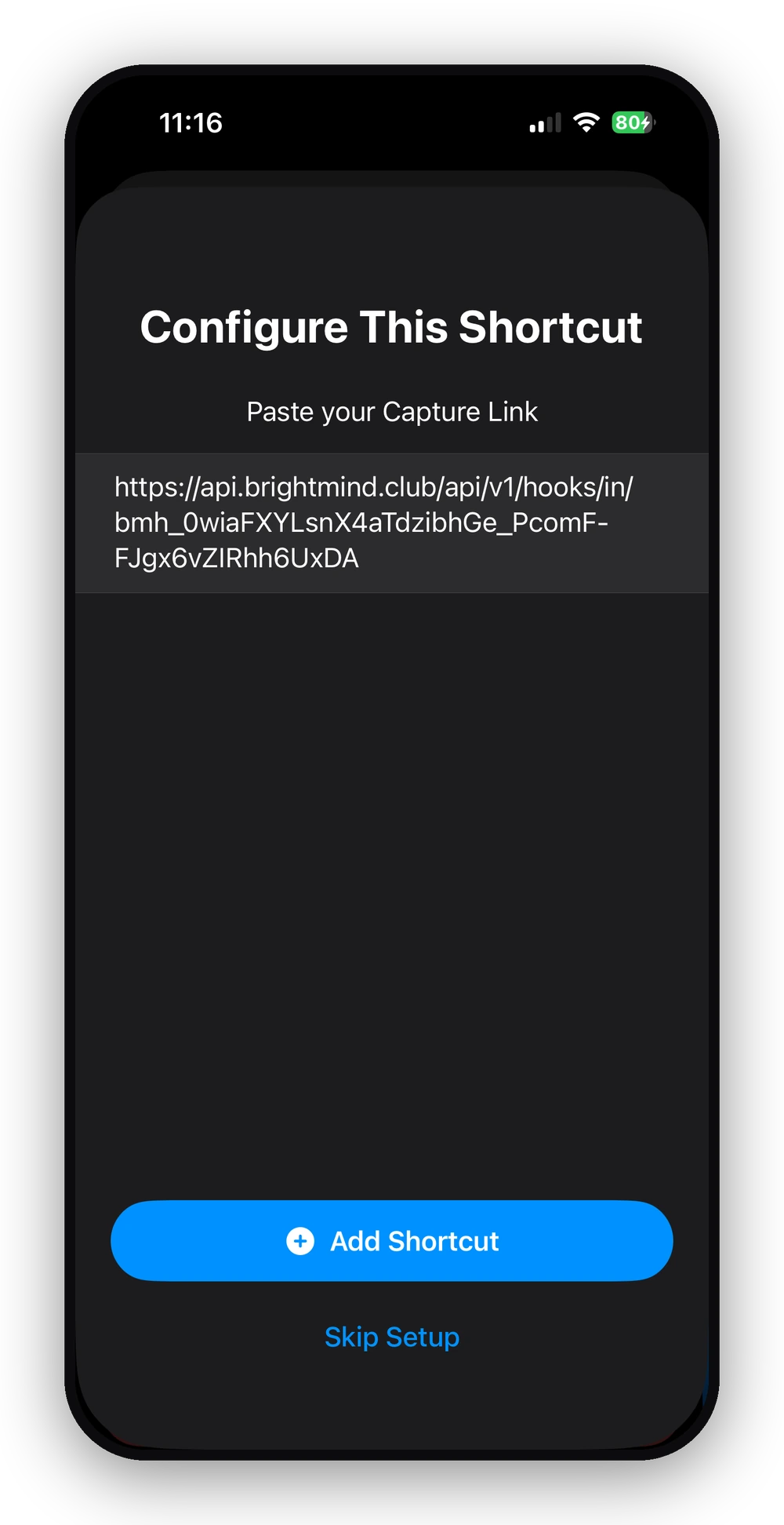
Your capture link is private, the key that lets your watch send text into your account, so treat it like a password. If it ever leaks, toggle capture off and on in Settings for a fresh one.
Say "Hey Siri, Brain Dump"
On your watch, say "Hey Siri, Brain Dump." Siri asks "What's the text?", you say the task however it comes out, and it's saved. No app, no list, no typing.
Talk like you'd talk to a person. "Pick up groceries on Tuesday" becomes a dated task. "Buy milk, and move my dentist appointment to Friday" handles both in one breath, because BrightMind reads the whole sentence, not a single parsed fragment.
It remembers what you said
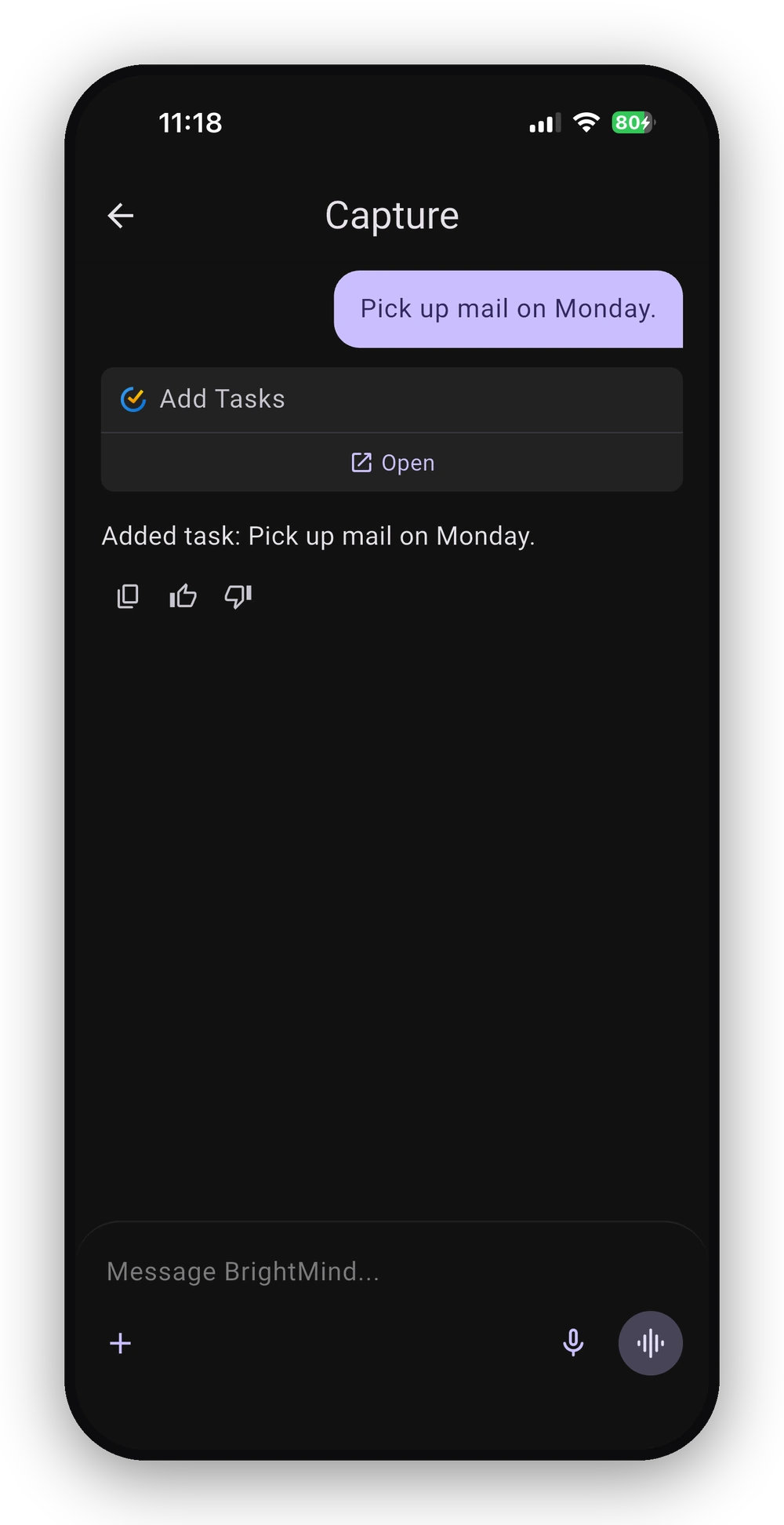
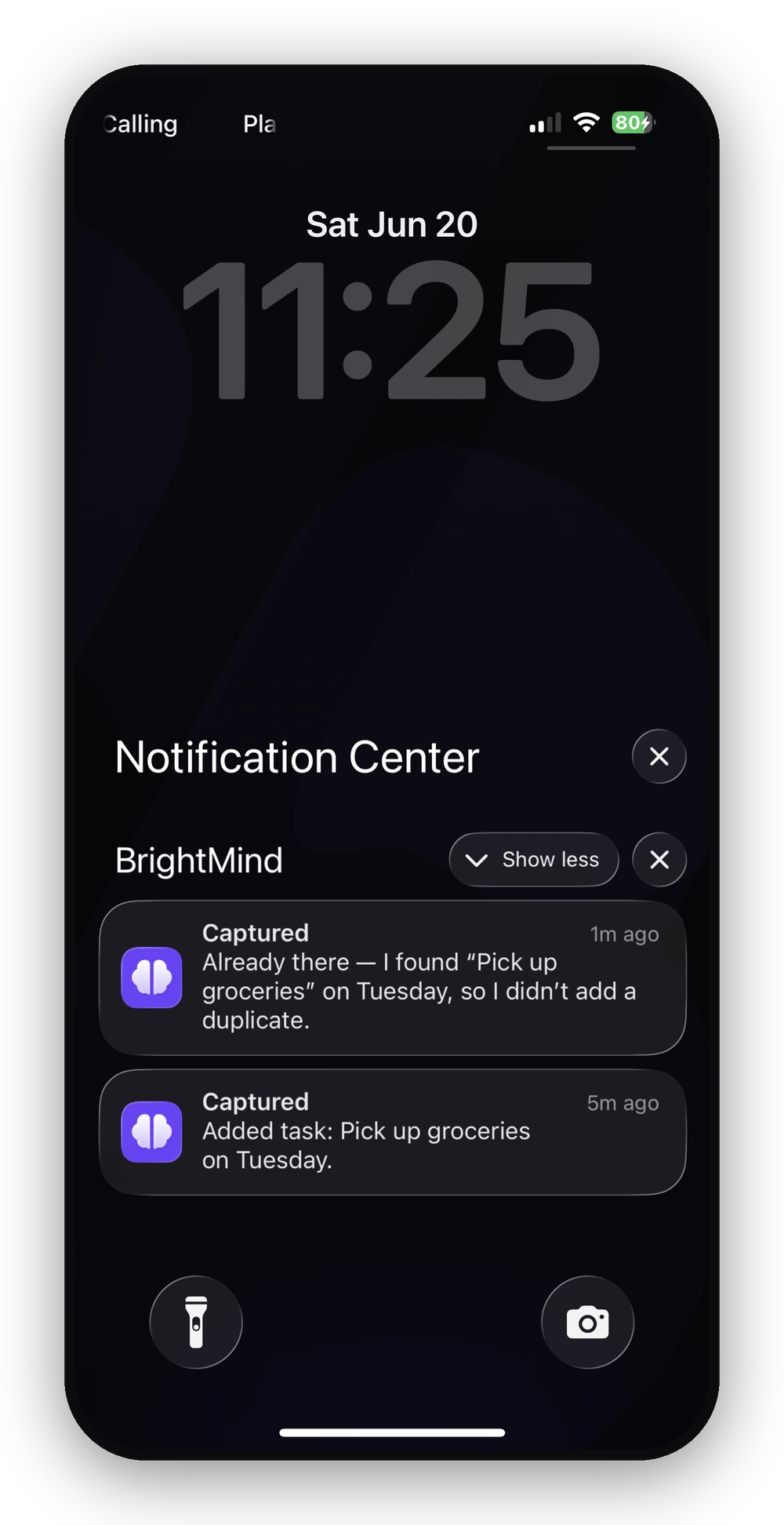
Every capture lands in one pinned Capture conversation, so BrightMind has the context of what you've already sent. That's what makes a second capture smart.
Say "pick up groceries on Tuesday," then later, having forgotten, say it again. Instead of a duplicate, BrightMind sees it's already there and tells you. The same context lets you follow up: capture "the dentist is Monday at 9," then "move the dentist to Tuesday," and it updates the right one.
Tasks or calendar events
You don't need to decide where things go. Talking to BrightMind is like sending it a message: it reads what you said and files a to-do into Todoist or TickTick, or, if you've connected Google Calendar, puts a timed appointment there. "Pick up the dry cleaning" lands as a task, "dentist Monday at 9am" as an event. You can still be specific and tell it exactly where something should go.
Every capture confirms itself
A few seconds after you speak, a notification comes back with the confirmation, like "Added task: pick up groceries on Tuesday." If something can't be filed, the notification says so, and nothing is lost, because the text is still sitting in the conversation.
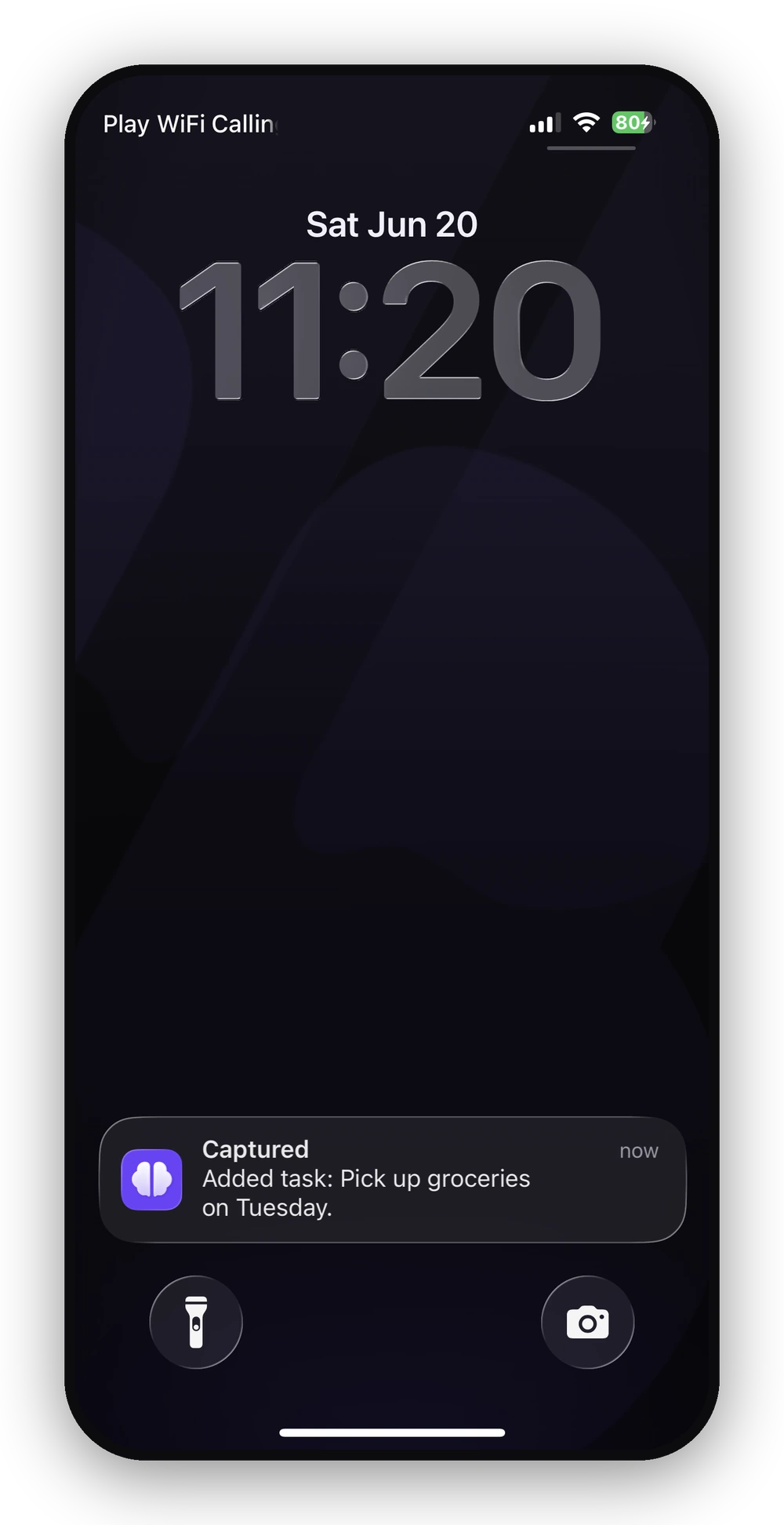
On the watch you get the same confirmation on your wrist, so a glance tells you it's handled.
If something doesn't work
Most hiccups come down to one of three things, each a few-second fix.
- A capture saved nothing. Your capture link may have been reset. Toggle capture off and on in Settings for a fresh one, then redo the paste step.
- The task didn't reach Todoist or TickTick. Open Settings and check your task manager is still connected. A disconnected integration is the usual cause.
- The shortcut isn't on your watch. It appears automatically after Add Shortcut. If not, reopen the Watch app, or just say "Hey Siri, Brain Dump" and let Siri find it.
Using Siri on iPhone
This guide is the Apple Watch shortcut. BrightMind also works with Siri directly on iPhone, with a "capture in BrightMind" phrase and custom Shortcuts that need no setup. Those are in the Siri and Shortcuts docs.
So connect your task manager, turn on Add with Siri, paste the link into the watch shortcut, and start talking. The typing that used to stand between you and a captured task is gone. BrightMind catches the thought now, and you can get it here.
Frequently asked questions
- Can you add tasks to Todoist by voice?
- Yes. With BrightMind you say the task out loud and it files a clean, dated task into Todoist, with no typing. You can speak from your iPhone, AirPods, CarPlay, or your Apple Watch. The same works for TickTick. Timed appointments go to Google Calendar instead of your task list.
- Does BrightMind work on Apple Watch?
- Yes, after a one-time setup. You install a small Brain Dump shortcut, paste your personal capture link when it asks, and tap Add Shortcut. From then on you say 'Hey Siri, Brain Dump' on your wrist, speak the task, and it lands in your task manager with a confirmation on the watch.
- Can Siri add tasks to TickTick?
- Yes, through BrightMind. Turn on 'Add with Siri' in BrightMind's settings, connect TickTick, and say 'Hey Siri, capture in BrightMind' on your phone, or 'Hey Siri, Brain Dump' on your Apple Watch. BrightMind transcribes what you said and files it into TickTick as a proper task.
- How do I add a calendar event by voice?
- Say it the way you'd say it to a person, like 'dentist appointment Monday at 9am.' If you've connected Google Calendar, BrightMind reads that as a timed appointment and puts it there instead of your task list. A plain to-do, like 'pick up groceries,' goes to Todoist or TickTick. It routes for you.
- Is BrightMind free?
- BrightMind has a free tier, and the voice-capture setup in this guide works on it: Siri capture, the Apple Watch Brain Dump shortcut, the pinned Capture conversation, and filing into Todoist or TickTick. You can set it up and use it daily without paying.